Revolutionizing Figma with No Code Development
TL;DR
The no code development space took a leap with Figma's MCP server. It enables seamless connection between Figma designs and IDEs like Cursor, making development effortless.

Key Takeaways
- 1Figma's MCP server allows direct integration into IDEs.
- 2Setting it up is a one-time process; afterward, it works seamlessly.
- 3Use MCP to copy designs and see them in code with ease.
- 4The server asks for context to ensure high-fidelity reproduction.
- 5Export elements like logos for precise implementation.
- 6You can achieve pixel-perfect designs with minimal manual input.
- 7Responsive design development is streamlined with this tool.
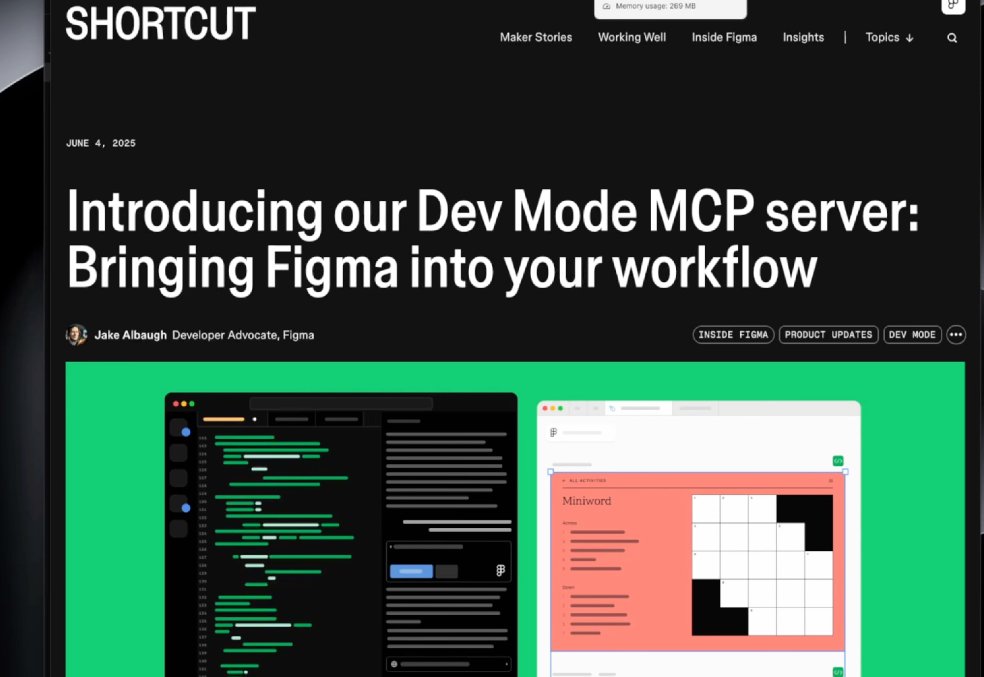
The world of no code development is getting a major upgrade with the new MCP server from Figma. This groundbreaking tool allows us to directly interface Figma designs within our Cursor IDE, streamlining the development process.
Setting Up Your MCP Server
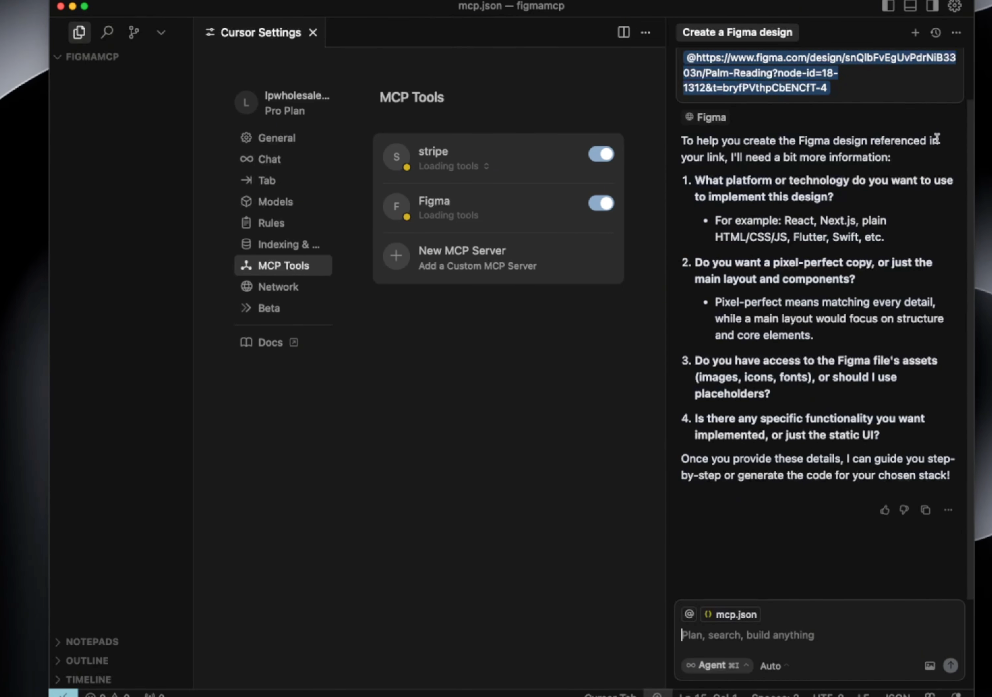
Getting started, we launch our project called Figma MCP. After opening the project, head to the settings, navigate to MCP tools and ensure your Figma is updated for the MCP server. This integration is seamless because, once set, Cursor remembers your configurations, eliminating the need for repeat setups.
Connecting Figma Designs with Cursor
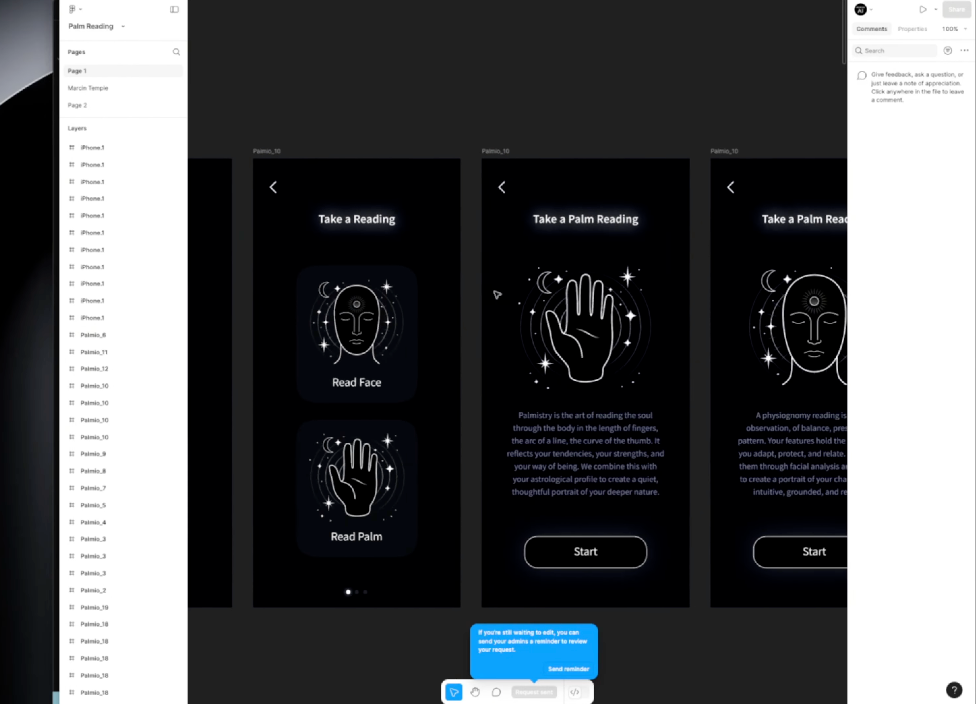
With the server activated, you open your design, right-click to copy the link to selection, and paste it into Cursor. This step is crucial as it enables the MCP server to understand and apply your design into coding environments. You can specify preferences like technology stacks, ensuring you get pixel-perfect designs.
Ensuring Accurate Design Implementation
As we demonstrate, by preparing elements like logos and images, exporting them, and then letting Cursor handle the setup, we can see an accurate HTML and CSS structure emerge. This allows us to focus on the intricate parts of design without manual coding hassles.
Bringing It All Together
Once all setup processes are complete, viewing the result is quite satisfying. Our Figma-driven designs display perfectly in the browser. It's all about precision and ensuring every button and image behaves exactly as intended.
MCP server by Figma and Cursor enables you to bring any design from vision to reality with unmatched accuracy and responsiveness. This tool is a game changer for developers looking to simplify their workflow by leveraging designs efficiently into coding environments directly.
Want to build this yourself?
Join 495+ non-technical builders in AI Builders. Start your free trial today.
Frequently Asked Questions
The MCP server connects Figma designs with IDEs like Cursor for seamless no code development.
Marcin Teodoru
AuthorHollywood filmmaker turned AI educator. I help non-technical people build real apps with AI — no coding required. 455K+ on TikTok, 37K+ on YouTube. Founder of AI Builders, the fastest-growing VibeCoding community in the world.
Want More Tutorials Like This?
Get AI app building guides, tool reviews, and tips delivered weekly. Join 10,000+ builders.
No spam. Unsubscribe anytime.
Stop Watching. Start Building.
AI Builders is the #1 community for non-technical people building real apps with AI. Step-by-step lessons. Weekly calls. Real results.
$49/mo after trial · Cancel anytime · 450+ members
Related Tutorials

No-Code App Development Software: 5 Buying Criteria and What It Really Costs
No-code app development software explained: the 5 buying criteria that decide your pick, plus verified 2026 prices for Bubble, Zite, Softr and FlutterFlow.
Best No-Code AI App Builders in 2026: Bubble vs Zite
The best no-code AI app builders in 2026, compared honestly. Bubble vs Zite — pros, cons, pricing, and who each one suits best, in plain language.
What Is No-Code AI? A Beginner's Guide
What is no-code AI? A beginner's guide to building apps with AI without writing code — how it works, who it's for, the best free tools, and the honest limits.

How to Set Up OpenClaw: Non-technical Users' Guide 2026
Set up OpenClaw in 15 minutes with our step-by-step guide. Learn what real people are building—from automated CRMs to AI personal assistants—plus security tips and resources.